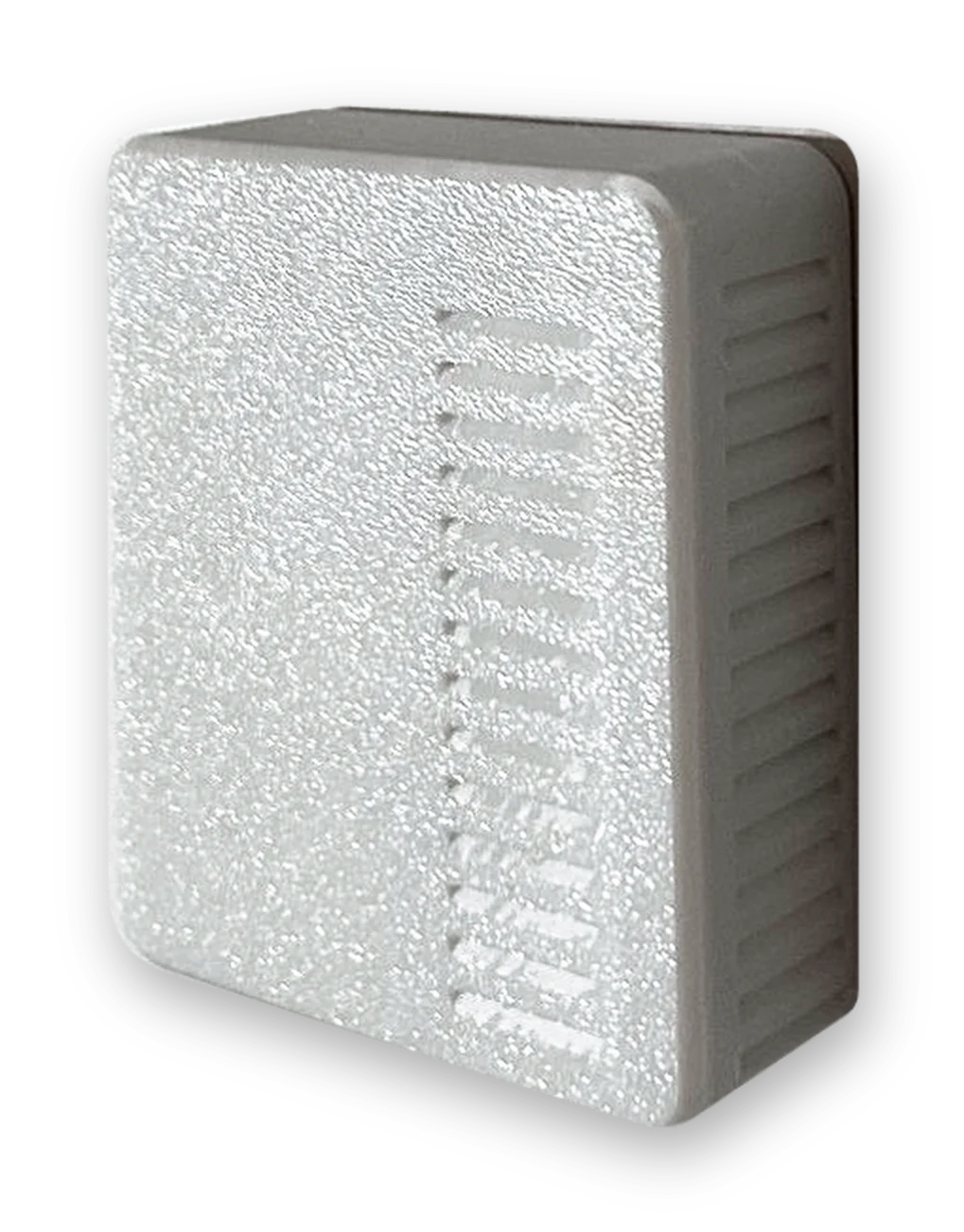
Zone CO2 User Manual
A native BACnet/IP CO2, temperature and humidity sensor for ventilation checks. This manual takes you from the kit to points on your BAS.
1. What's in the kit
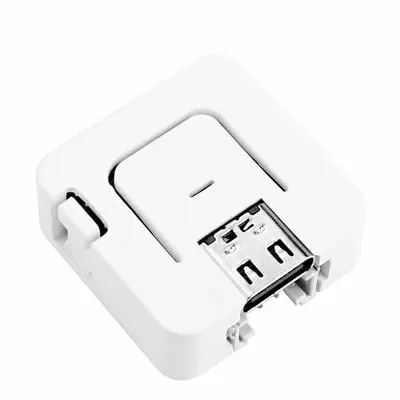
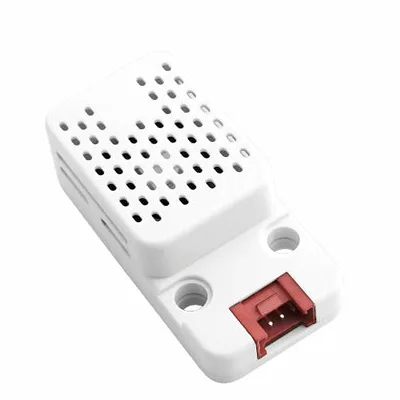
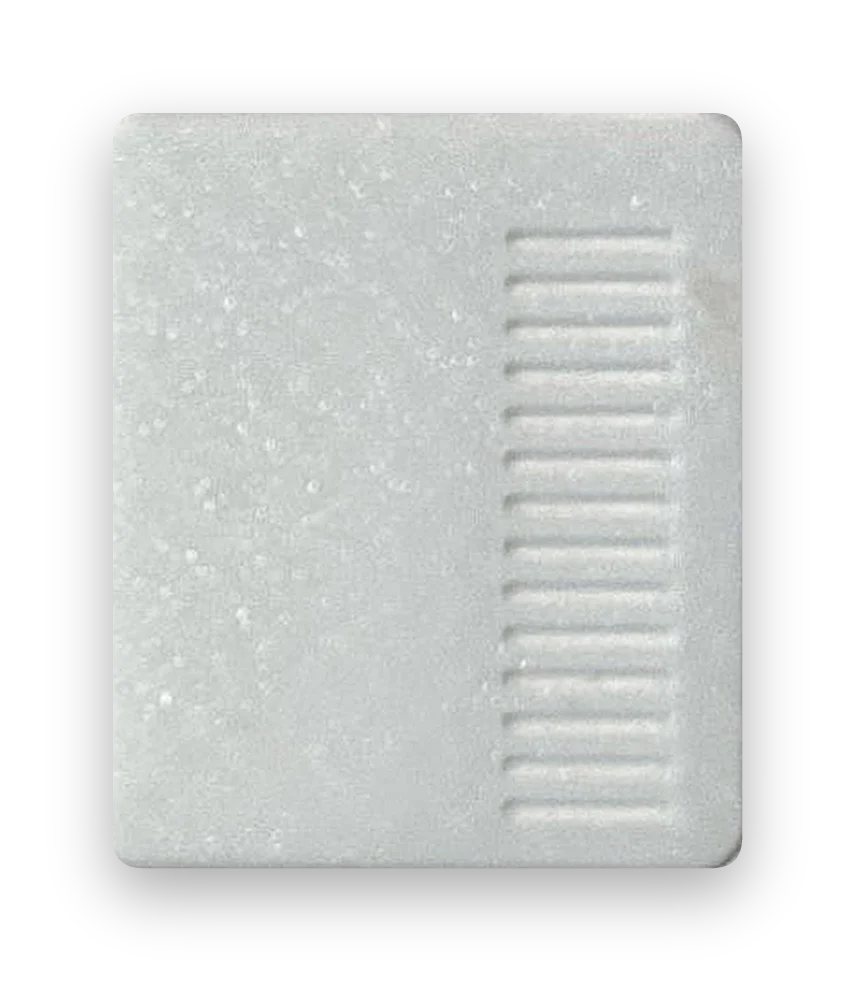
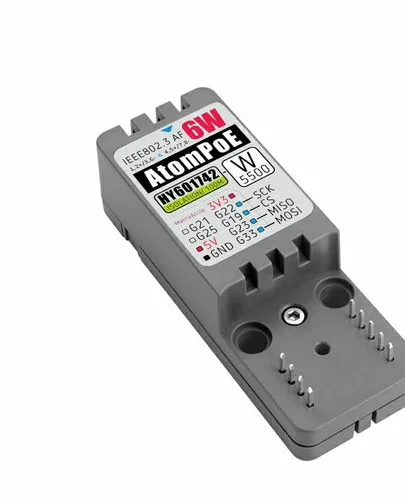
You also need:
- A USB-C data cable. A charge-only cable will not work.
- A laptop with Chrome or Edge.
- A Maintenance Station account with an active subscription. Tron software is free with it.
- Wired PoE: an 802.3af PoE switch port on the network your BAS is on, and an Ethernet cable.
- Wi-Fi: a 5 V USB power supply, which is not in the kit, and a 2.4 GHz Wi-Fi network.
Sourced the hardware yourself? Any hardware with these part numbers installs the same way.
2. Assemble it
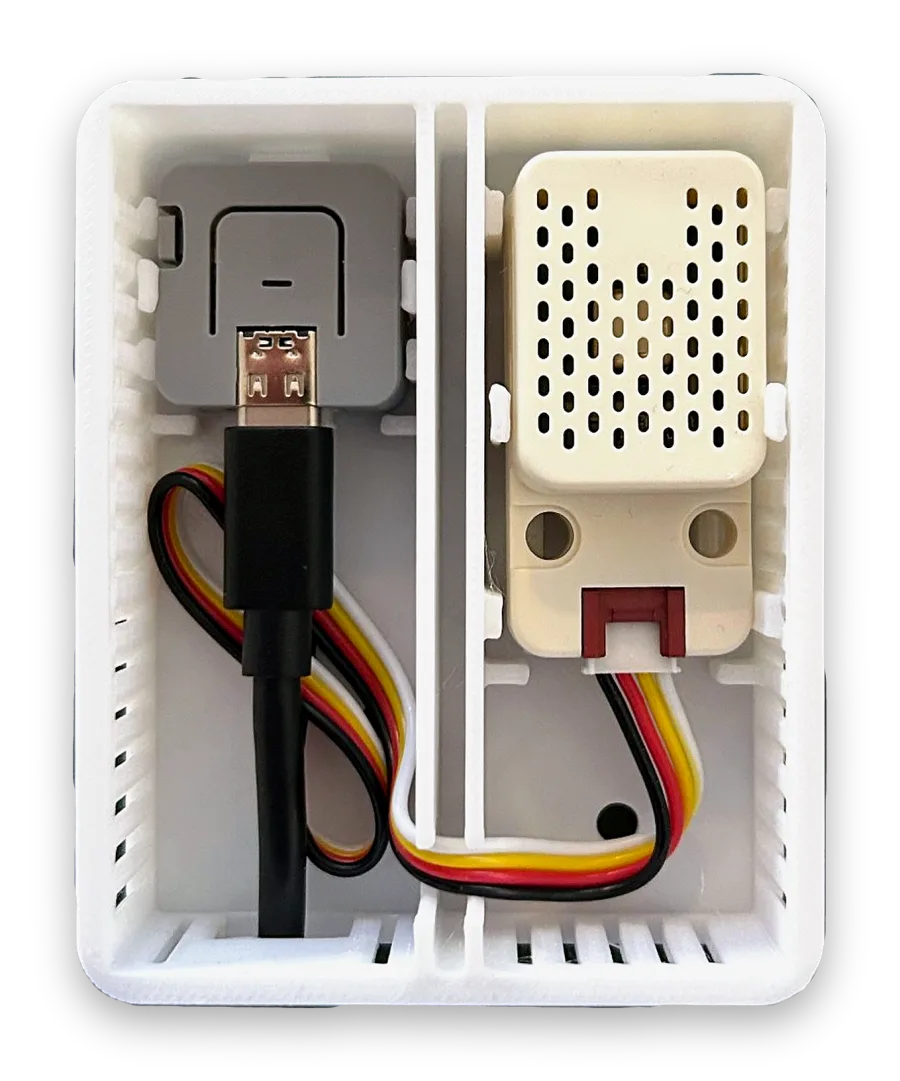
Put the parts together
Plug the CO2 unit into the Atom's Grove port with its included cable.
Wired PoE: fit the PoE base
The wired PoE kit adds the ATOMIC PoE Base. Seat the Atom on the base. The base carries both Ethernet and power, so a wired Tron needs no power supply.
Fit it in the wall case
The wall case has two compartments. Press the Atom into the clips on one side and the sensor into the clips on the other, and run the Grove cable between them through the gap in the divider. The power or Ethernet cable leaves through the slot at the bottom.
Leave it unmounted until it is installed: it has to reach your laptop first.
3. Install from Maintenance Station
Connect the Tron to your laptop
Use the USB-C data cable, straight into the Tron.
Open the installer
Sign in to Maintenance Station in Chrome or Edge and open Settings → Trons. There is nothing to download and no code to write.
Choose the Tron and give it its BACnet settings
Pick Zone CO2 and give it a device name and a BACnet device instance. The instance has to be unique on your BACnet network: ask your controls integrator for a number if you are not sure.
Install
Maintenance Station writes the firmware and the settings to the Tron. Keep it plugged in until it finishes, then unplug it.
4. Mount it and add it to your BAS
Mount it and power it
Wired PoE: plug it into the PoE switch port. Wi-Fi: plug it into the 5 V USB power supply. There is no power switch.
Discover it
The Tron answers Who-Is as a native BACnet/IP device. Discover it from your BAS front end, controller or Tron Gateway, then add its points. Its vendor, model, serial number (MAC) and firmware version are in the Device object.
Wired PoE is the reliable choice for BACnet. Many Wi-Fi access points drop the broadcasts that Who-Is discovery relies on.
5. BACnet points
| Object | Name | Value | Writable |
|---|---|---|---|
| AI1 | CO2 | ppm · COV 25 | — |
| AI2 | Temperature | °F / °C · COV 0.2 °F | — |
| AI3 | Relative Humidity | %RH · COV 1 | — |
| AV1 | Fault Code | Lowest active fault, 0 = healthy · COV 1 | — |
| AV2 | Temperature Offset | Δ°F / Δ°C, ±10 °F, persisted · COV 0.1 | Yes |
| AV3 | Altitude | ft / m, 0–9843 ft, persisted · COV 1 | Yes |
Services: Who-Is / I-Am, Who-Has, ReadProperty, ReadPropertyMultiple, WriteProperty, SubscribeCOV (confirmed or unconfirmed, 8 subscriptions) and DeviceCommunicationControl. The Tron works on its local subnet only: it is not a BBMD and does not register as a foreign device.
6. Fault codes
The Fault Code point reads 0 when the Tron is healthy. Otherwise it reads the number of the lowest active fault below, so alarm on anything above 0.
| Code | Fault | When it shows |
|---|---|---|
| 10 | Power fault: supply dropped out (brownout) | The supply voltage dipped and the Tron restarted. Shown for 24 hours. |
| 11 | Power fault: repeated restarts | Five unplanned restarts, each within a minute of the last. Shown for 1 hour. |
| 20 | Internal fault: firmware crash | The firmware crashed and the Tron restarted. Shown for 24 hours. |
| 21 | Internal fault: firmware stopped responding | The watchdog restarted the Tron. Shown for 24 hours. |
| 22 | Internal fault: storage write failed | A setting could not be saved. |
| 23 | Internal fault: low memory | Free memory is below 20 KB. |
| 24 | Internal fault: over temperature | The chip is above 90 °C. |
| 25 | Hardware fault: button stuck | The button has been held for more than 30 seconds. |
| 26 | Hardware fault: sensor unit not detected | The sensor does not answer. Check its cable. |
| 29 | Hardware fault: sensor reading out of range | A reading is outside what the sensor can measure. |
| 30 | Connection fault: Wi-Fi network not found | The Wi-Fi network it was set up for is not in range. Wi-Fi only. |
| 31 | Connection fault: Wi-Fi password rejected | The Wi-Fi network refused the password. Wi-Fi only. |
| 32 | Connection fault: no network address | Connected for 30 seconds without getting an address. |
| 33 | Connection fault: weak Wi-Fi signal | Signal below −80 dBm for 5 minutes. Wi-Fi only. |
| 37 | Connection fault: Ethernet link down | No link on the Ethernet cable. Wired PoE only. |
| 40 | BACnet fault: device instance already in use | Another device announced the same instance. Shown until the Tron restarts. |
| 41 | BACnet fault: network port unavailable | The BACnet UDP port could not be opened. Retried every 10 seconds. |
| 43 | BACnet fault: no supervisor reading values | On the network for 10 minutes with nothing subscribed to or reading its points. |
7. Specifications and notes
- Sensor
- Sensirion SCD40, photoacoustic NDIR (M5Stack Unit CO2)
- Measures
- CO2, temperature, relative humidity
- Update rate
- Every 5 s · ±(50 ppm + 5 %) from 400–2000 ppm
- Protocol
- BACnet/IP, native
- Network
- Wi-Fi (2.4 GHz) or wired Ethernet with the ATOMIC PoE Base
- Power
- USB-C 5 V, or 802.3af PoE through the PoE Base
- Set AV3 to the site's altitude — the sensor's pressure compensation is about 3 % per 250 m.
- Automatic self-calibration assumes the space sees fresh air (~420 ppm) at least weekly. Spaces that never do can be calibrated against a reference instead.
8. Troubleshooting
- The installer can't see the Tron
- Use Chrome or Edge: other browsers cannot reach a USB device. Then try another cable. Many USB-C cables only charge and carry no data.
- My BAS can't discover the Tron
- Check that the BAS and the Tron are on the same subnet: a Tron does not answer across routers. On Wi-Fi, the access point may be dropping broadcasts. Add the Tron by its IP address and device instance, or move it to wired PoE.
- Two devices answer with the same instance
- Every Tron needs its own device instance. Install the Tron again with a number nobody else uses.
- The Fault Code point is above 0
- 0 is healthy. Anything above it is the lowest active fault: look the number up under Fault codes. For a sensor fault, check the sensor cable first.
- The reading has drifted or stopped
- Sensor elements wear out. Replace the M5Stack CO2 Unit (M5Stack U103) with the same part: the Atom and its settings stay as they are.
- Something else
- Contact us with the Tron's name and what you are seeing.
Zone CO2 hardware is supplied as a kit of parts for the customer to assemble. It is not intended for use in critical, life-safety, or other high-risk applications.